

How to Sync CRM Data with Google Analytics and Ad Platforms (Step-by-Step)
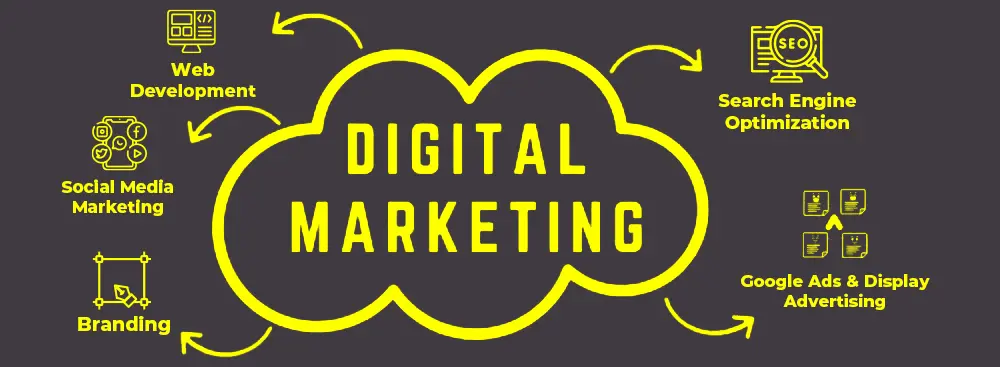
Connecting your CRM to Google Ads gives you the perfect picture and helps you measure success by tying back your digital marketing efforts to your business’s bottom line. By connecting the two, you can see the exact keywords and campaigns that drive the most qualified leads revenue and, ultimately, which keywords and campaigns to optimize. Not having the two connected, you could be missing a key part of the big picture when it comes to driving leads.
For example, let’s say you are tracking conversions on a “free demo” request form, and you count those form submissions as leads, which then go into your business’s CRM: And exactly at that moment, on the dashboard you can identify two keywords that drive a majority of your business SQL’s and Closed/Won leads. Therefore, you decide to increase bids on both keywords.
Today, we are going to sync your CRM system with Google Ads system and skyrocket your marketing tactics.
Checklist Before Starting
You need to have
- A CRM (HubSpot, Salesforce, Airtable, etc.)
- Website with tracking installed
- Access to:
- Google Analytics 4
- Google Ads
- Meta Ads Manager
Step 1: Track Users Properly
You need to capture these elements:
- Email (or user ID)
- Source (where they came from)
- Campaign (UTM parameters)
You can do it by
- Adding UTM parameters to all ads
- Store them inside your CRM when a user signs up
Step 2: Connect CRM to Google Analytics 4
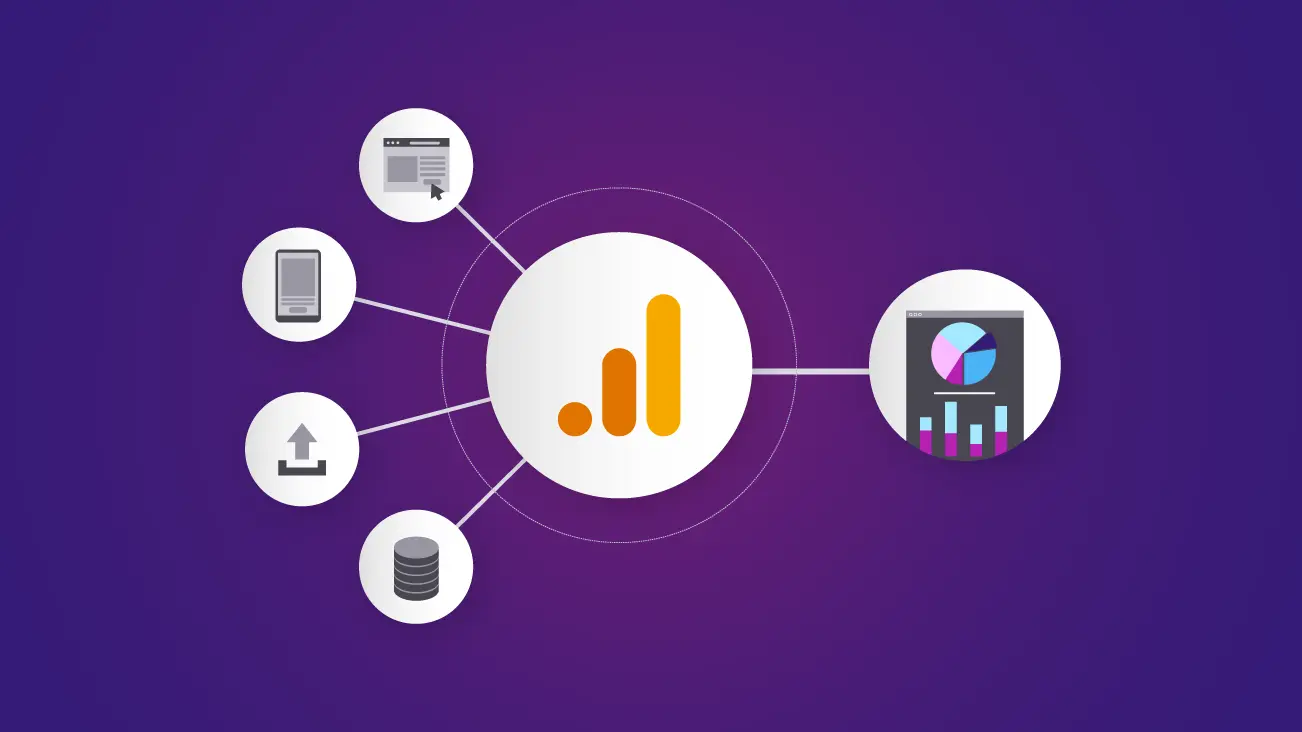
You need to manually send CRM data to GA4.
Option A (No-code / the easiest option)
Use tools like:
- Zapier
- Make (Integromat)
Flow:
CRM → Trigger (New Lead / Sale) → Send event to GA4
Option B (Advanced)
Use:
- Measurement Protocol API (GA4)
Send events like:
- lead_created
- purchase_completed
Step 3: Import Conversions into Google Ads
You can do it with this method:
Offline Conversion Tracking
- Capture GCLID (Google Click ID) when user clicks ad
- Store it in your CRM
- When sale happens → upload it to Google Ads
And in Google Ads:
- Go to Conversions → Upload → Offline conversions
With this your Google Ads will start optimizing for real paying customers, not just clicks.
Step 4: Sync CRM with Meta Ads (Facebook/Instagram)
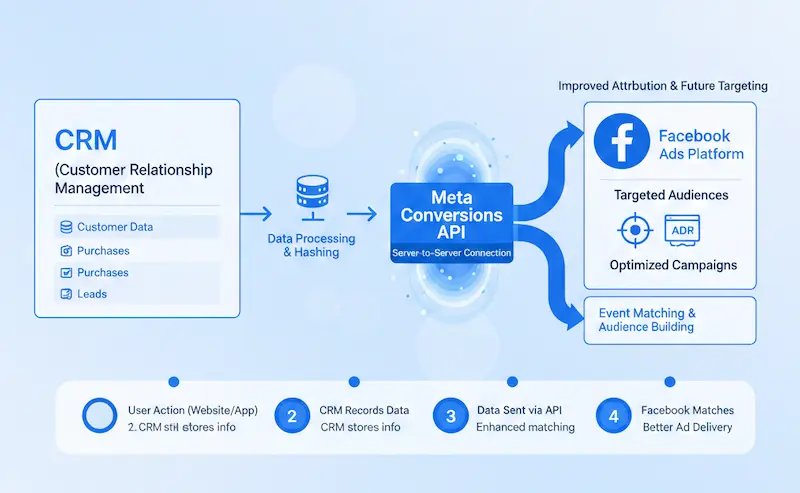
Method: Conversions API (CAPI)
Instead of relying only on pixels, send data directly.
You send:
- Email (hashed)
- Event (Lead, Purchase)
- Value
In Meta Ads Manager you need to:
- set up Conversions API
Tools to simplify:
- Zapier
- Native CRM integrations
Step 5: Build High-Quality Audiences
With sync, you will be able to polish targeting to the highest level, as you will get direct analyzed leads:
From CRM:
- People who started but didn’t finish
- High-value customers
- Repeat users
And in ads:
- Lookalike audiences
- Retargeting campaigns
Step 6: Close the Loop
Now it’s time connect everything:
Ad → Click → Lead → Sale → Revenue → Back to Ads
With that you will be able to keep up with the updates for:
- Cost per actual customer
- Revenue per campaign
- Lifetime value (LTV)
This decade is all about the automation and constant update for the sale system, and you need to kep up up with it as a business owner. You can partner with Intactdia and get highly profitable results in just a month. With our decade long Google Ads sale automation service, all your business needs will be transferred to revenue and customers.